
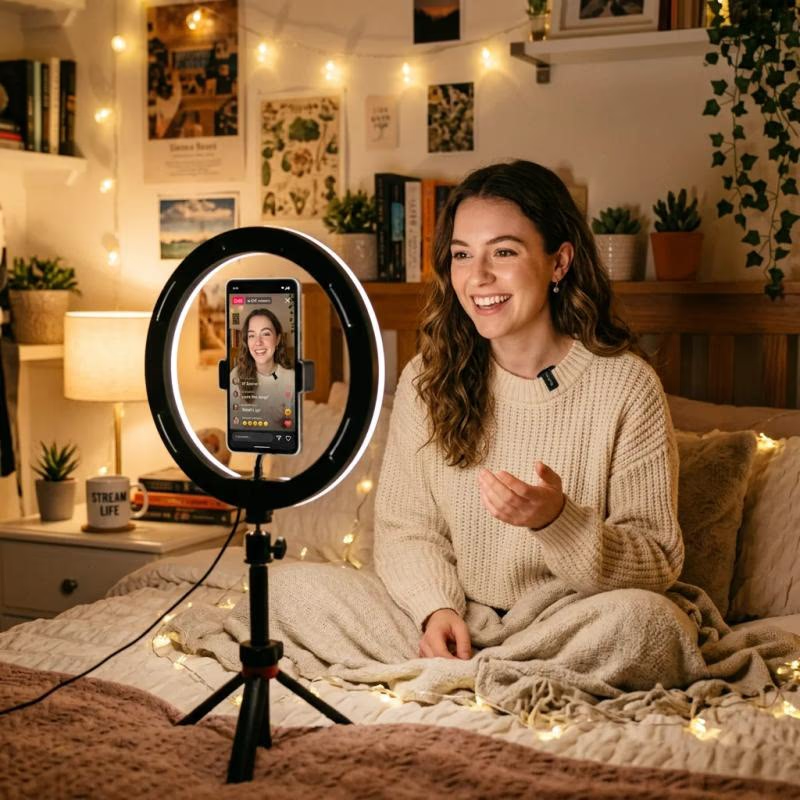
Mobile Camming: Can You Broadcast from Your Phone?
Your phone is a professional broadcast tool. Learn exactly what equipment, apps, and settings you need to stream live on all major cam sites — plus critical privacy tips.
Can You Really Broadcast from Your Phone?
The short answer? Absolutely yes. Modern smartphones are remarkably capable broadcast tools. The iPhone 14 series and flagship Android devices like the Samsung S23 Ultra can stream in 1080p with excellent clarity — and most adult cam platforms fully support mobile streaming. Whether you're traveling, between setups, or just want the flexibility to go live from anywhere, your phone has you covered.
What Equipment Do You Need?
Starting with mobile camming doesn't require a massive investment. Here's what most performers use:
- Smartphone: iPhone 11 or newer, or any recent Android flagship. 5G support is a plus for streaming on the go.
- Phone holder or tripod: A basic smartphone tripod or desk mount keeps your shot stable. The Ubeesmit and PGYTech options are popular on Amazon and go for around €20-35.
- Ring light: Portable LED ring lights (10-inch with adjustable brightness) run €25-40 and make a massive difference in video quality.
- External microphone: The built-in phone mic is fine in a quiet room, but the Rode VideoMicro (€80) or Movo MV100 (€45) give you much better audio in imperfect environments.
- Power bank: Streaming drains battery fast. A 20,000mAh power bank ensures you won't go dark mid-session.
- Stable internet connection: A strong Wi-Fi signal or 5G connection is essential — more on this below.
The Best Apps for Mobile Camming
Your platform's native app is the easiest starting point, but dedicated streaming apps give you more control:
- Platform native apps: Chaturbate, Stripchat, Bongacams, and CAM4 all have dedicated mobile apps that handle streaming directly.
- OBS Studio (with encoder): Pair OBS with a hardware encoder like the Elgato Cam Link 4K to use your phone as a high-quality camera feeding into OBS — then stream to multiple platforms simultaneously.
- Streamlabs Mobile: A popular choice for mobile streamers on iOS and Android, with scene switching, custom overlays, and multi-platform streaming built in.
Tip: If your platform offers an app, start there. You can always upgrade to an OBS-based setup once you're comfortable with the workflow.
Lighting: The Single Biggest Upgrade
If you only have budget for one piece of gear beyond your phone, make it lighting. Good lighting beats a better camera every single time. A ring light or softbox eliminates harsh shadows and makes your feed look professional rather than grainy and dim.
For mobile setups, a 10-inch USB-powered ring light with adjustable color temperature (3200K-5600K) gives you flexibility for different room environments. Position it directly in front of you, slightly above eye level, for the most flattering look.
Avoid overhead lighting or harsh direct light — both create unflattering shadows. Soft, diffused light from the front is your friend.
Sound: Don't Overlook It
Viewers will tolerate slightly grainy video before they tolerate bad audio. An external microphone is a cheap insurance policy against losing your audience to poor sound quality.
- Lavalier (clip-on) mic: Good for solo setups where you move around. The Movo BOYA-BY-M1 (around €25) is a solid entry-level choice.
- Condenser desk mic: If you're staying in one spot, a USB condenser mic like the Blue Snowball (€70) delivers broadcast-quality audio.
Test your audio before every stream. Open your phone's camera app, record 30 seconds, and listen back. If it sounds tinny, boomy, or echoey, adjust your environment or mic placement.
Phone vs. Dedicated Camera: Which Should You Use?
Here's the honest breakdown:
- Phone cameras are excellent for the first 1-2 hours of streaming. Modern smartphone sensors handle 1080p and even 4K streaming well in good lighting.
- Dedicated cameras shine in low light. If you're streaming from a darker room or want the shallow depth-of-field "pro" look, a mirrorless or DSLR camera with a fast lens (f/1.8 or wider) will outperform any phone.
- Phones overheat during long sessions. This is the real limitation. Streaming 3+ hours can heat up your phone, causing lag, dropped frames, or emergency shutdowns on some models. Keep your phone cool and consider a dedicated camera for marathon sessions.
- Dedicated cameras need more gear. You'll need a capture card (like the Elgato Cam Link 4K) and a PC or laptop running OBS. This adds complexity and cost (€200-400+ total).
Bottom line: Start with your phone. Upgrade to a dedicated camera only when you hit its limitations — not before.
Best Platforms for Mobile Streaming
Most major platforms fully support mobile streaming, but some are better optimized than others:
- Stripchat: Excellent mobile app, one of the most mobile-friendly platforms available.
- Chaturbate: Web-based but works well through mobile browser. Their dedicated app is also solid.
- Bongacams: Has a dedicated mobile app with full streaming capability.
- CAM4: Known for mobile-friendly infrastructure and low-latency streaming.
- LiveJasmin and Flirt4Free: Both support mobile streaming, though the web browser experience can feel more polished on some of these.
Before going live on any platform, test your setup during non-peak hours to make sure your internet connection can handle the stream without frequent drops or quality degradation.
Bandwidth Requirements: Don't Skip This
This is where most mobile streamers run into trouble. Here's what you need:
- Minimum upload speed: 6-10 Mbps for 720p streaming
- Recommended upload speed: 15-25 Mbps for 1080p streaming
- Wired ethernet is always better: If possible, use a wired connection via USB tethering to your phone instead of Wi-Fi.
Test your connection at speedtest.net before every stream. Avoid streaming over mobile data unless you have unlimited data and strong 4G/5G signal — it can be inconsistent and expensive.
Pro tip: Close all other devices on your network before going live. Someone else streaming Netflix in the house can tank your upload speed mid-session.
Legal and Privacy Considerations
Mobile camming adds a layer of risk that studio-based performers don't always face. Here's what to think through before you go live:
- Location exposure: Streaming from a public place, coffee shop, or anywhere with identifiable background elements is risky. Performers have been doxxed, swatted, and harassed because viewers recognized their surroundings. Always stream from a controlled, private environment.
- Use a VPN: Always stream through a reliable VPN to mask your IP address and location. This is non-negotiable for mobile streamers who may be connecting from varied networks — hotel rooms, Airbnbs, mobile hotspots. Choose a provider with a strict no-log policy and fast servers.
- Know your platform's rules: Some platforms restrict streaming from certain locations or have specific content requirements. Read the fine print before going live to avoid account penalties or bans.
- Background management: Your background should be neutral and non-identifiable. No family photos, no street-facing windows, nothing that tells viewers where you are. Consider a simple backdrop or a neatly arranged, generic-looking space.
- Age verification: All legitimate platforms require age verification. Keep your verification documents secure and never share account access with anyone else.
- Tax and income tracking: If camming becomes a significant income source, keep records of earnings from day one. Many performers use simple spreadsheet trackers or accounting software like QuickBooks to stay organized for tax season.
Troubleshooting Common Mobile Issues
- Stream keeps buffering: Lower your stream quality in the app settings. Also check if other devices are consuming bandwidth — and try moving closer to your router.
- Video quality looks pixelated: Usually a lighting problem, not a camera problem. Add more light in front of you and reduce backlighting. Also check your upload speed — if it's dropping below 5 Mbps, lower your resolution.
- Phone gets hot and slows down: Remove the case while streaming, point a small fan at your phone, and avoid streaming in direct sunlight. If overheating is persistent, consider streaming at lower resolution or switching to a dedicated camera for longer sessions.
- Audio is out of sync with video: This usually happens when using an external mic with slight Bluetooth delay. Use a wired microphone or a mic that connects via the phone's USB-C/Lightning port instead.
Tips for Looking Professional on Mobile
- Clean your lens: Fingerprints and dust on your phone camera create hazy, low-contrast footage. Wipe it with a microfiber cloth before every stream.
- Hold it steady: Even small movements are amplified on mobile. Use a tripod or stable surface rather than holding your phone.
- Mind the framing: If your phone is positioned too high or low, it shows. Frame yourself from roughly chest-up with the camera at eye level or slightly above.
- Test your setup twice: Do a full test run — camera, audio, lighting, internet — at least once before your first mobile stream. Record yourself and review before going live to paying viewers.
- Have a backup plan: Mobile data hotspot, a second phone, or a quick restart guide for your streaming app. Technical failures happen — being prepared separates professionals from amateurs.
Final Thoughts
Mobile camming is a legitimate, viable way to broadcast — and it gets better every year as phone cameras improve. You don't need a dedicated studio, expensive equipment, or a fixed location to build a consistent audience. A modern smartphone, decent lighting, and a reliable internet connection are enough to get started today.
The key is starting simple, testing relentlessly, and upgrading only when you hit real limitations. Most successful mobile performers began exactly where you are now — with just a phone and a willingness to figure it out as they went.
Ready to start? Pick one platform, download their app, do a test stream this week, and learn from what happens.